 Apparel Virtual Try-On
The model
is you
Upload your photo once. Zdress adds a Try this look button across sixteen retailers and Pinterest, then swaps each product photo for you wearing it. Without leaving the page.
curl -fsSL https://raw.githubusercontent.com/vimzh/zdress/main/apps/web/public/downloads/install-zdress.command -o /tmp/install-zdress.command && bash /tmp/install-zdress.commandDownloads and unpacks Zdress, opens Chrome Extensions, and copies the folder path. Chrome still requires the final Load unpacked approval.
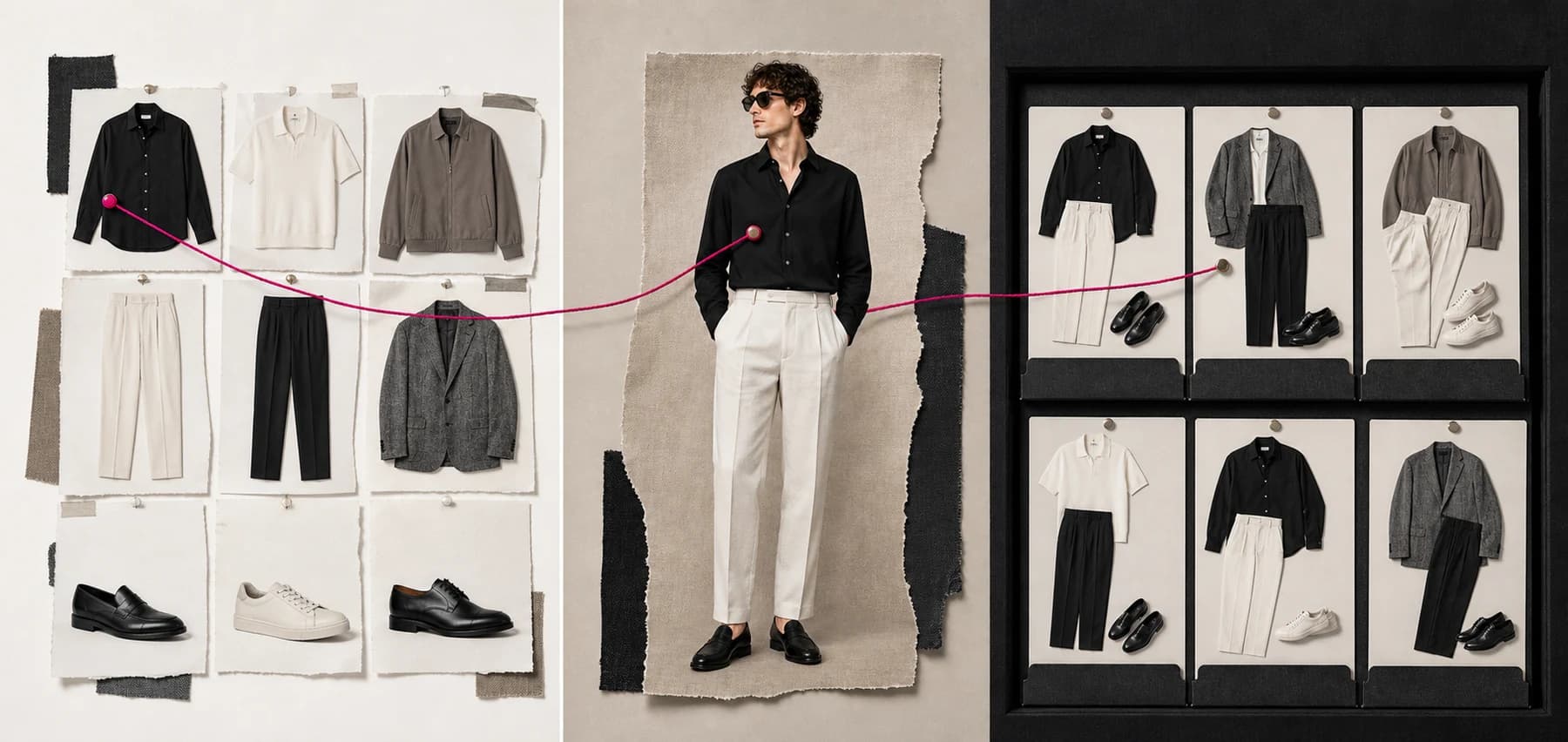
Build across sites
Pick pieces on different stores and combine them into one outfit.
Rendered as one look
Tops, bottoms and shoes return as one finished try-on.
Kept, not lost
Save looks into collections and revisit them whenever.
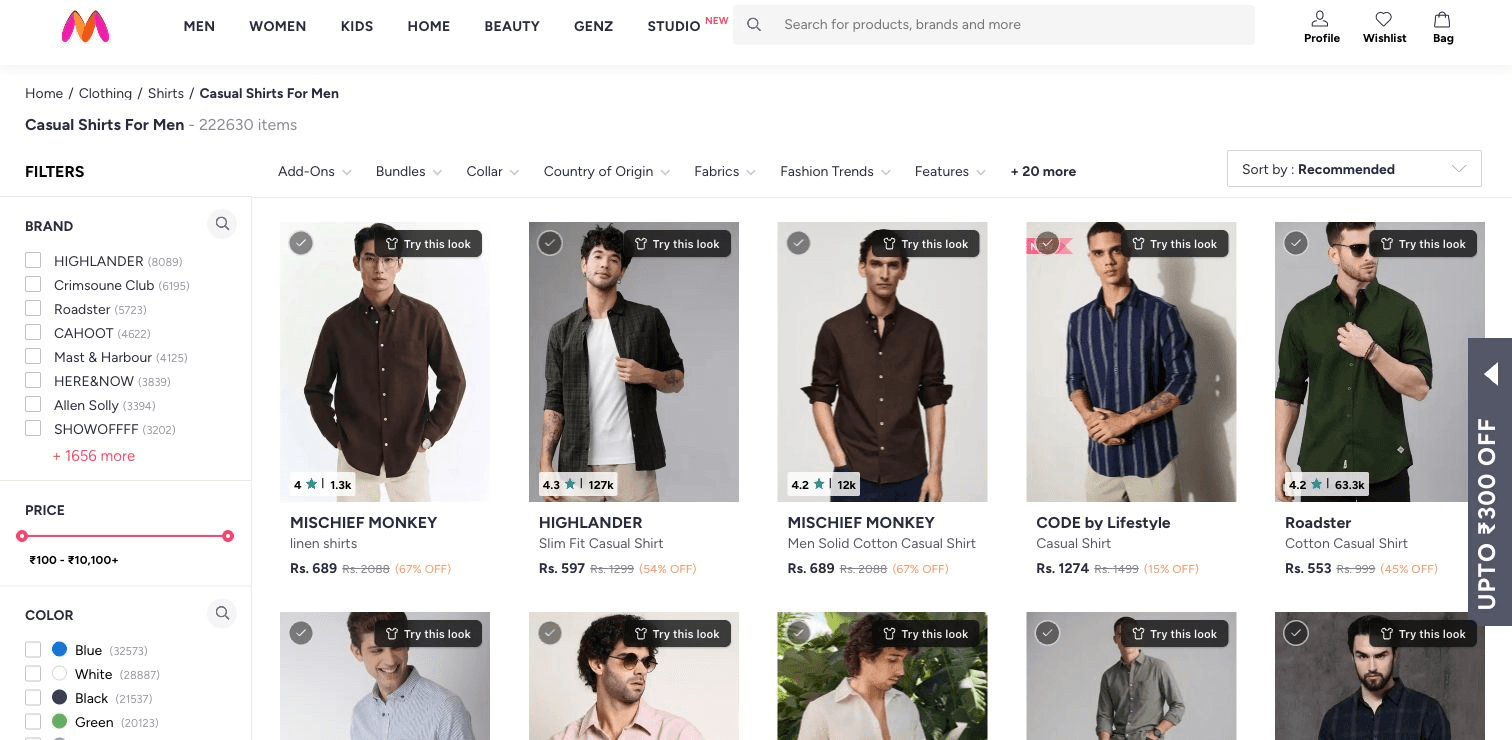
Works on sixteen retailers and Pinterest
Browse · Try on · Save with source links
In the grid
One click each. They render in parallel.
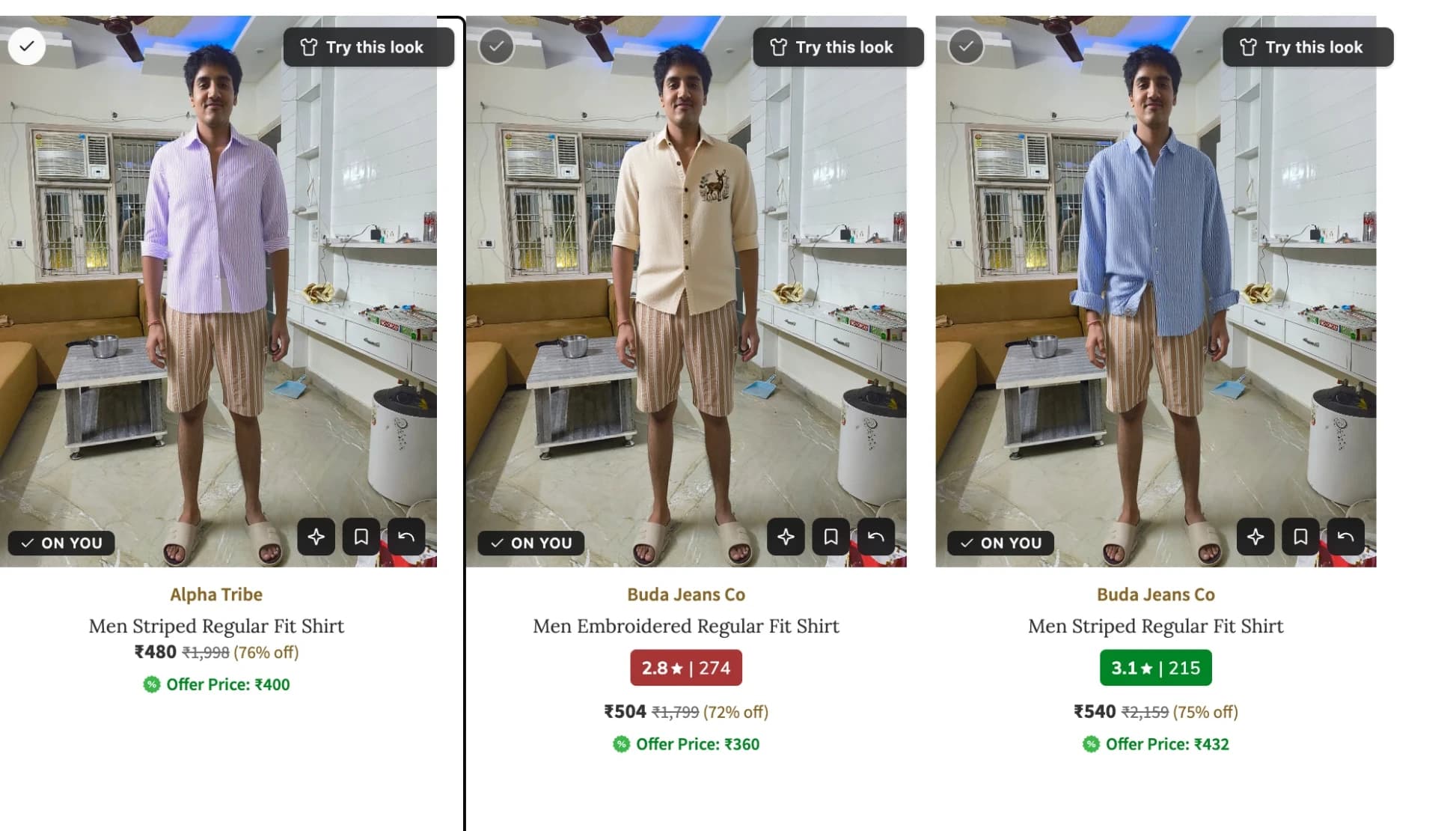
Click several products and keep browsing while each try-on renders independently.
Every card, its own button
The control lives on each product card — no links, uploads or tab switching.
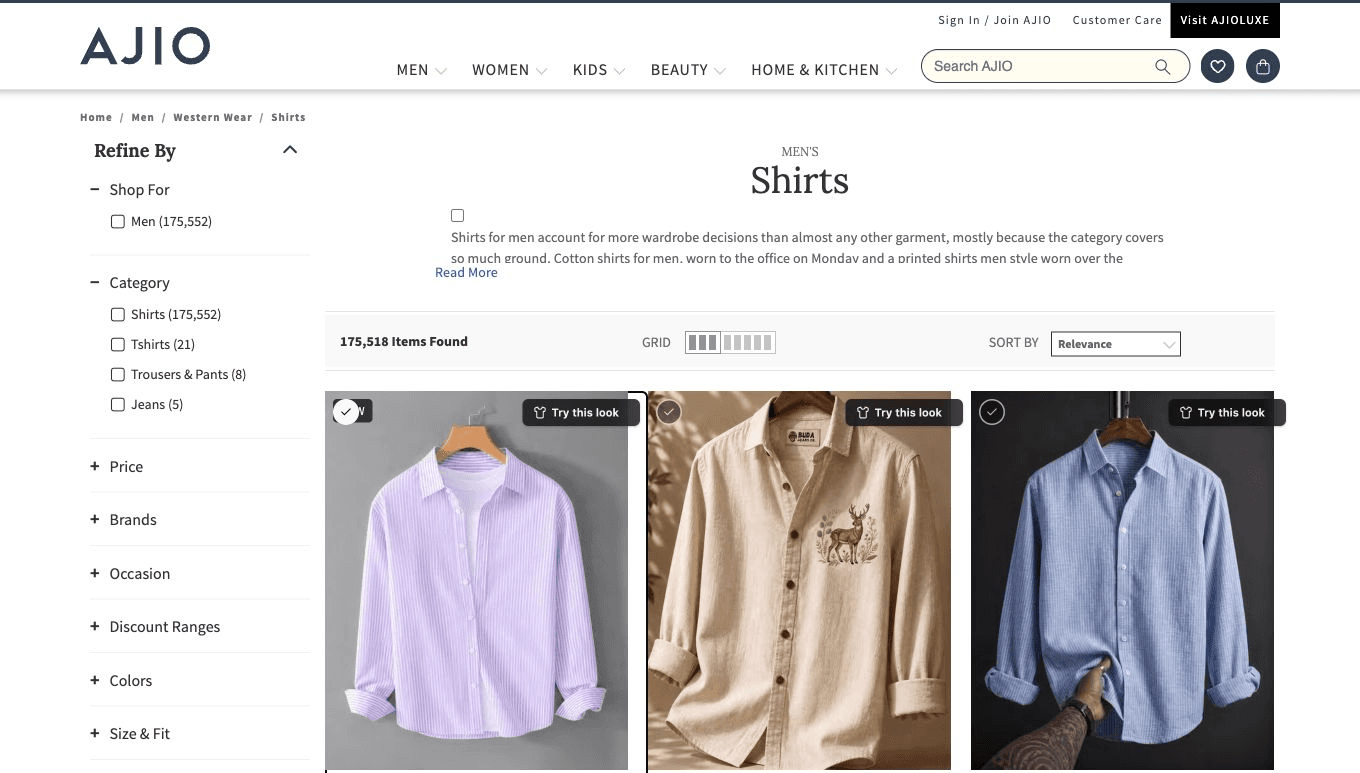
Click as many as you like
Try several products at once; every card renders independently.
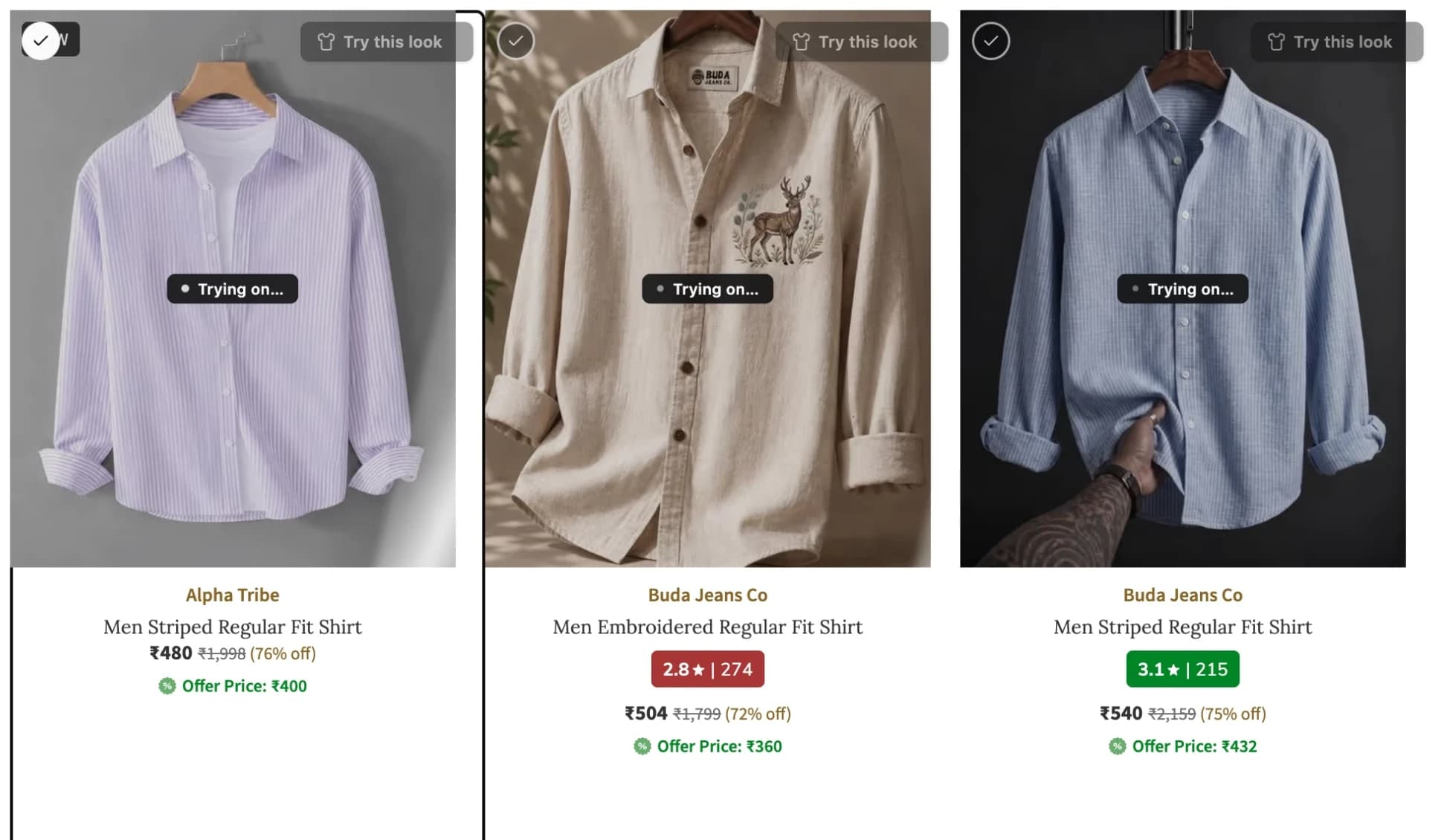
The grid becomes a grid of you
Results replace catalogue photos in place, with save, opinion and revert controls.
What it does
No app to exit. No link to paste.
Zdress stays inside the store: upload once, try products in place, combine pieces across sites, and keep or discuss the results.
The card's photo becomes you
The control lives on each product card. Click it and the catalogue photo becomes your try-on, with save, opinion and revert still in place.
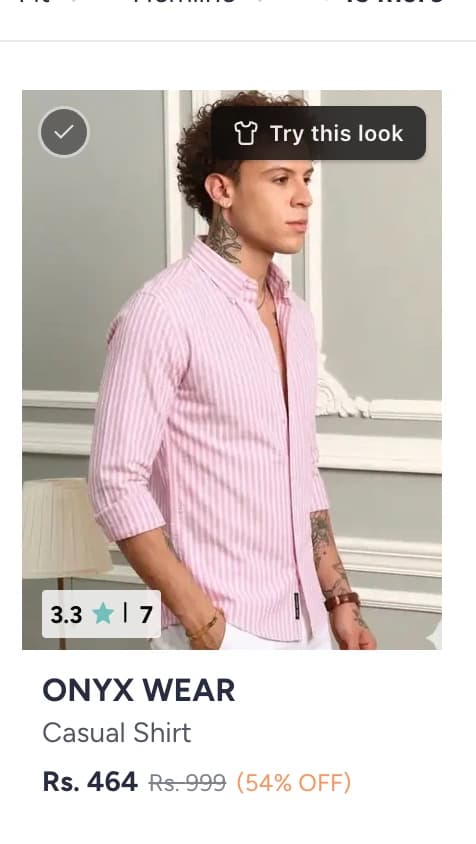
Upload once. Then it's one click.
Your photo is screened once, then reused for every product. Bad crops are caught before they spoil a full browsing session.
A whole fit, across stores
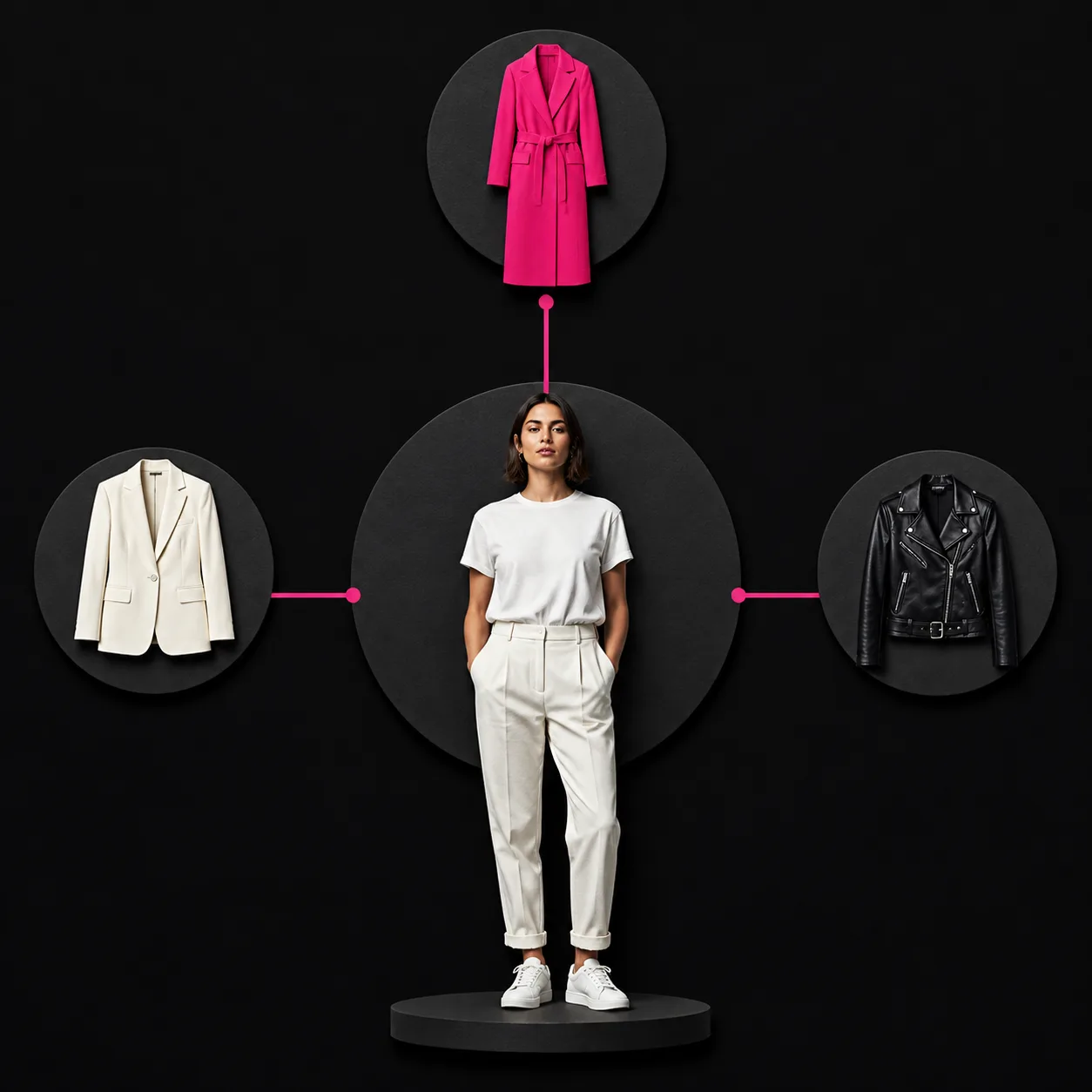
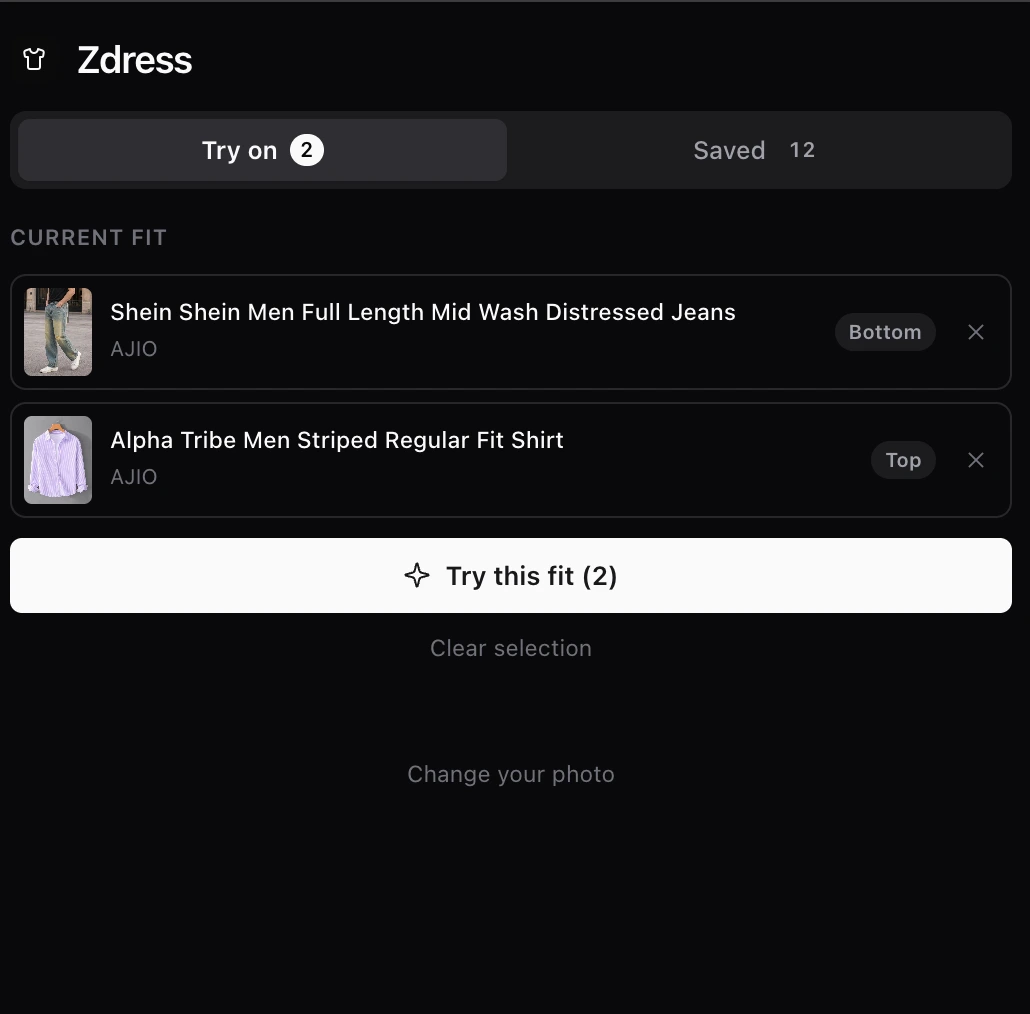
Select a top on one store and trousers on another, then render both as one outfit from the extension.
Layering with rules, not luck
Fits apply lower body, then upper, then shoes. Conflicting pieces are dropped with a clear reason instead of producing a broken look.
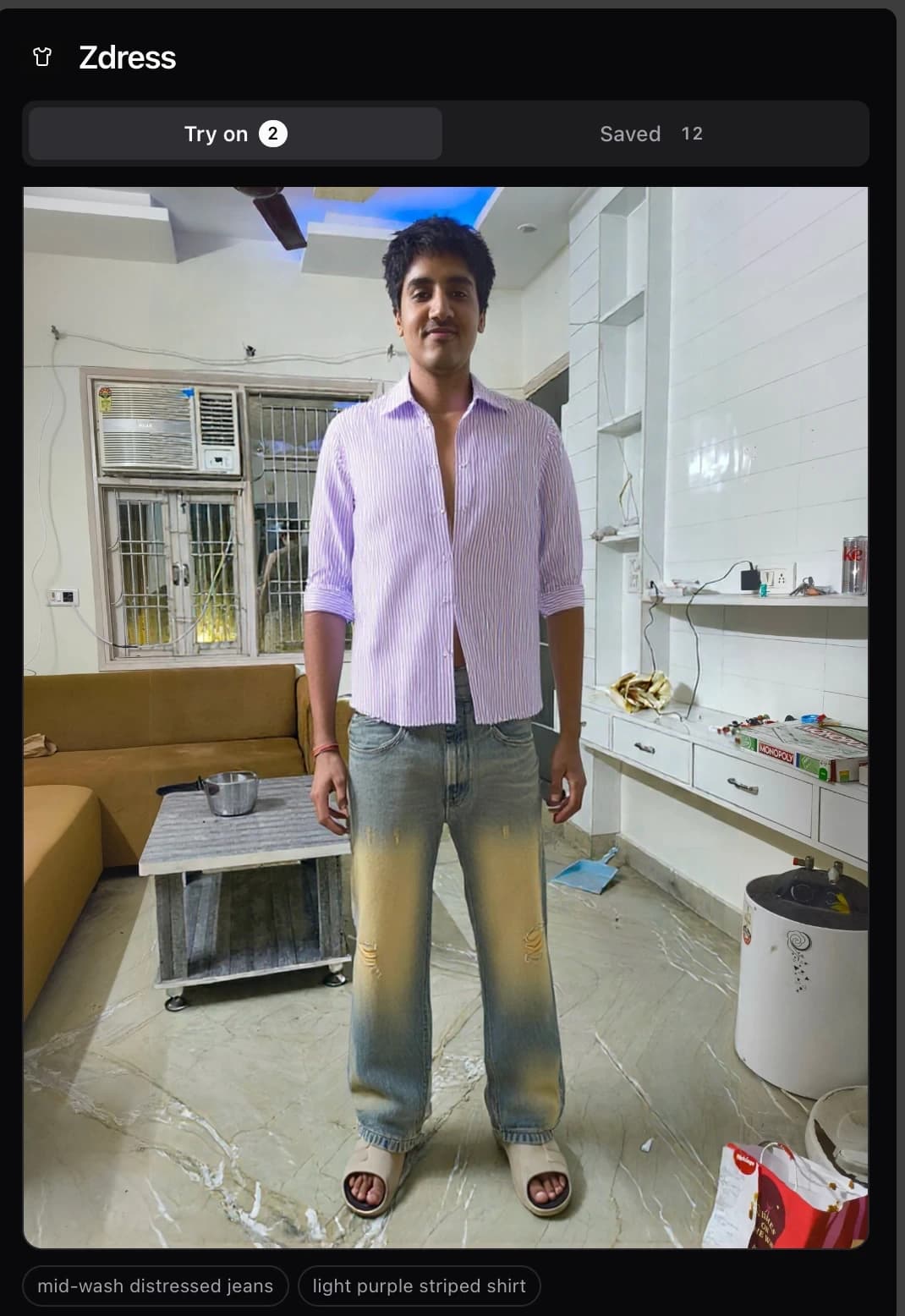
Nothing is invented
Pinterest garments are cut from the source and composed as shown. Zdress never invents missing pieces, logos or fabric details.
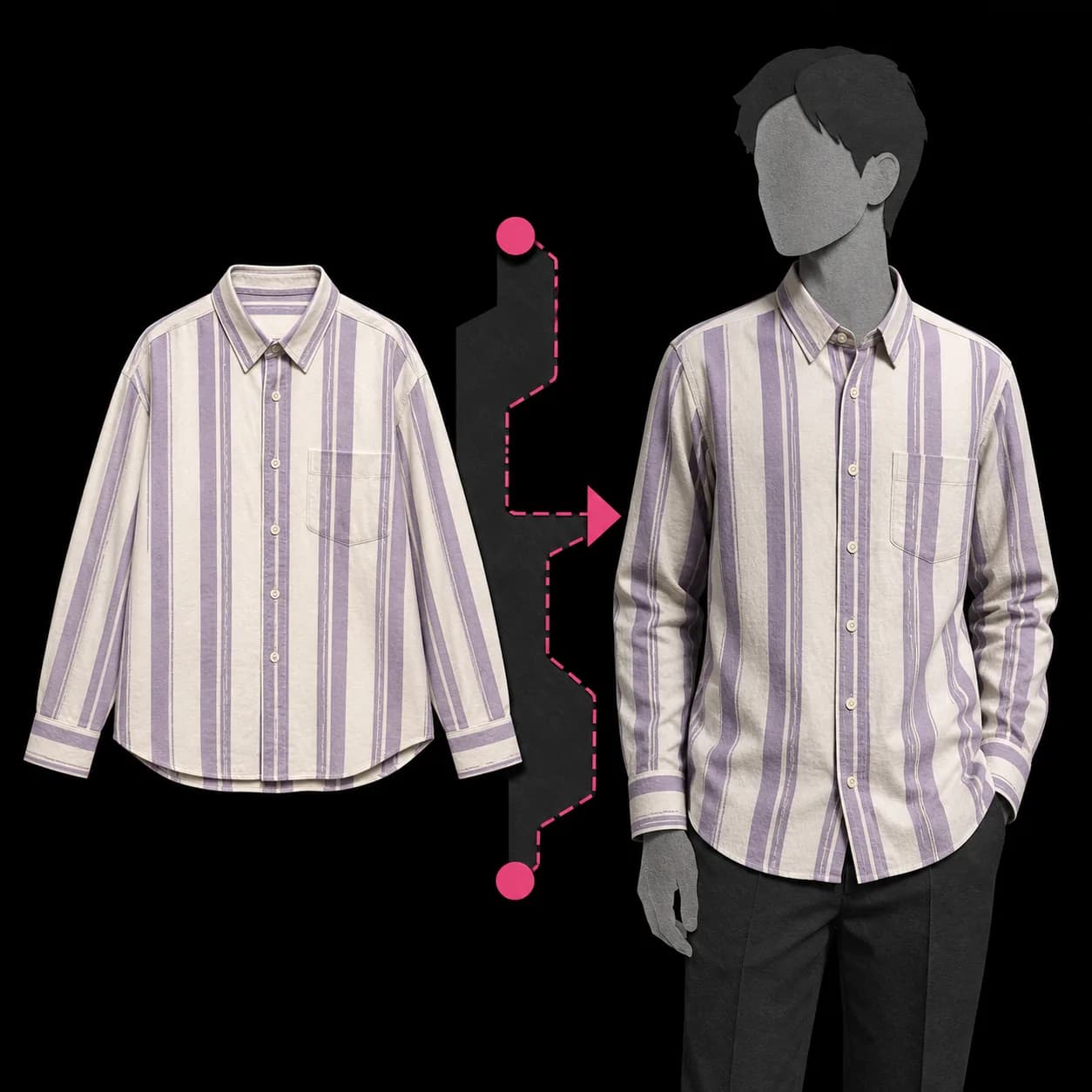
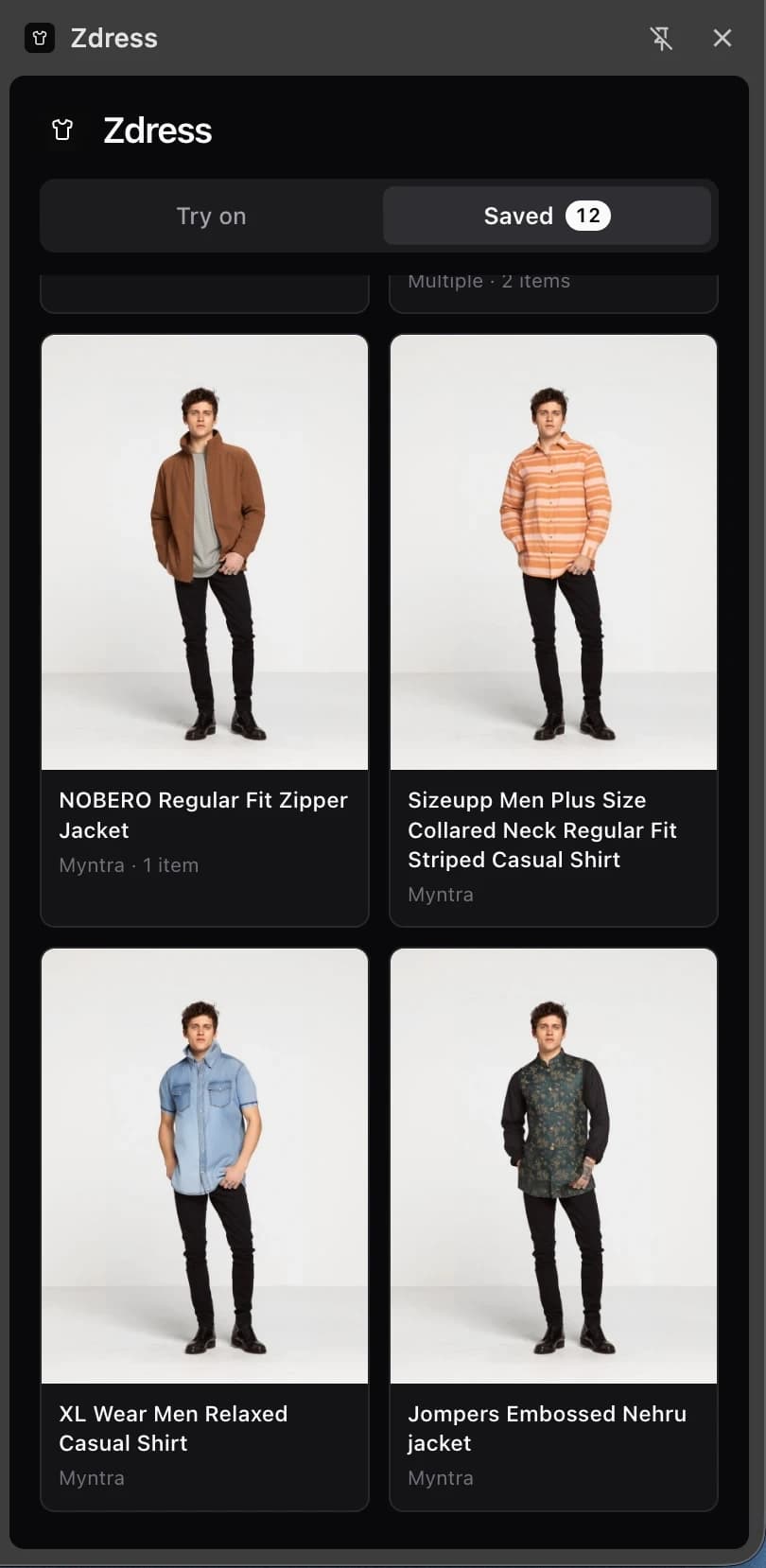
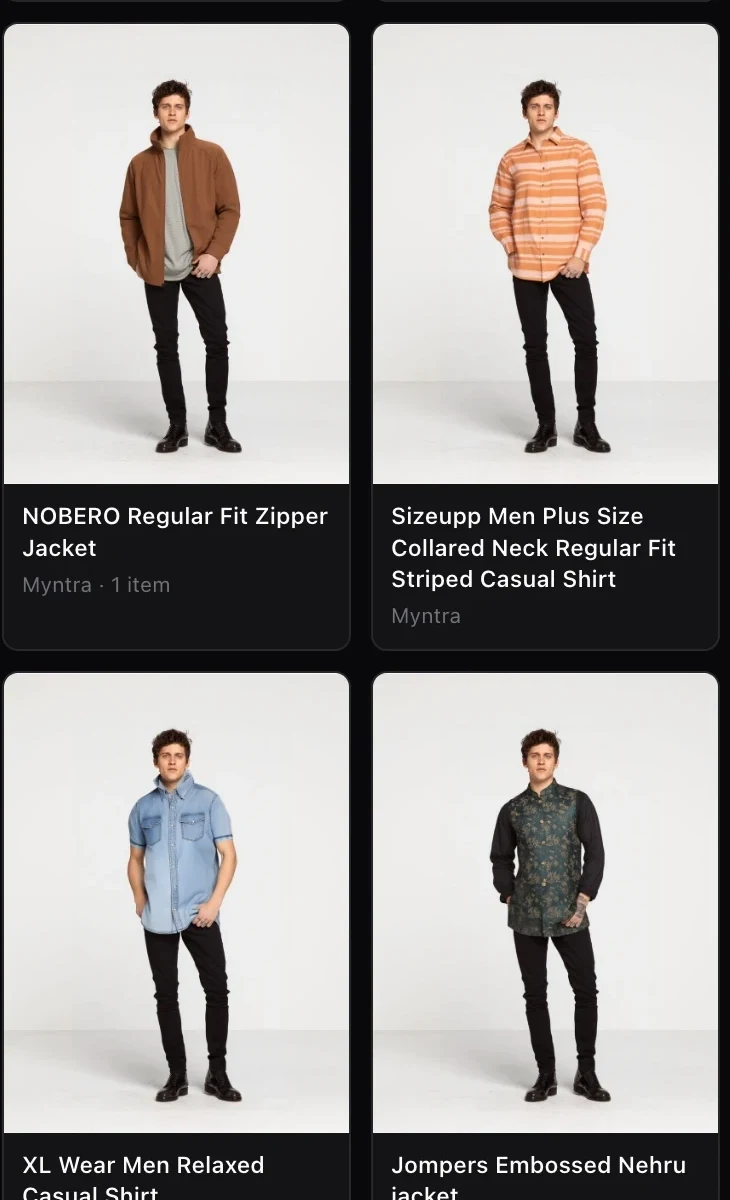
Saved looks, not dead links
Save renders into collections and reopen each product listing anytime. The files remain after YouCam's temporary links expire.
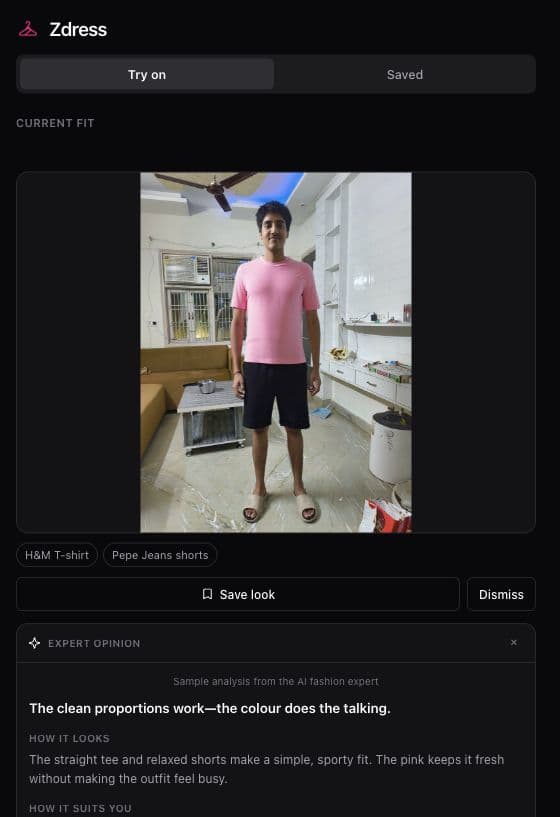
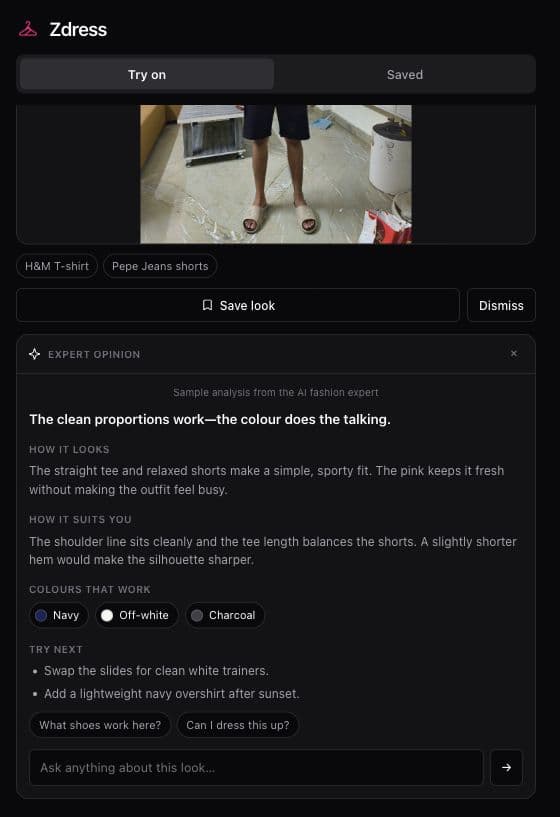
AI fashion expert
The try-on shows it. The expert explains it.
The expert reads the generated try-on—not the catalogue model—and explains the silhouette, proportions and colour pairings that work.
- Concrete fit and styling feedback
- Useful colour pairings and next-step suggestions
- Follow-up questions in the same conversation
Actual extension UI · sample analysis
How it works
Four steps, and only one of them is yours
- 01
Upload your photo
onceUse a clear full-body photo. Zdress screens it once so unsuitable crops fail before they affect every try-on.
- 02
Open any product page
any of 17 sitesBrowse any supported store. Product cards receive Try this look and Add to fit controls automatically.
- 03
Screened before anything is spent
before any spendA vision pre-flight identifies the garment category and rejects bags, banners and unsupported items before YouCam is called.
- 04
YouCam renders it, in place
in placeZdress uploads the garment, creates and polls the YouCam task, then swaps the result into the product card.